eLinehub Mechanic User Guide: Quick Setup & Connection
- 2025년 4월 19일
- 4분 분량
최종 수정일: 3월 24일
eLinehub is a pure-software remote vehicle diagnostics and programming platform. It works by securely mapping your on-site VCI hardware to a remote Technician’s computer over the internet — giving them direct, real-time control of your diagnostic device as if they were physically present in your workshop. No additional hardware is required on either side, and you do not need any OEM diagnostic software installed on your own computer.
For repair shops, this means access to specialist-level diagnostics and ECU programming on demand, without needing an expert on-site.
This guide covers everything you need to set up the eLinehub Mechanic software, connect your VCI, and get a remote session started with your Technician.
Step 1: Download and Install
Go to the official eLinehub website and download the latest Mechanic installer. Once the download is complete, double-click the file and follow the on-screen prompts to finish installation.
System requirement: Windows 7 or later (64-bit). Windows 10 / 11 is recommended.

Multilingual support: The software supports multiple languages, including German, French, Russian, Spanish, Traditional Chinese, and more. Switch your preferred language from the settings menu after installation.

Step 2: Open the Software — No Account Required
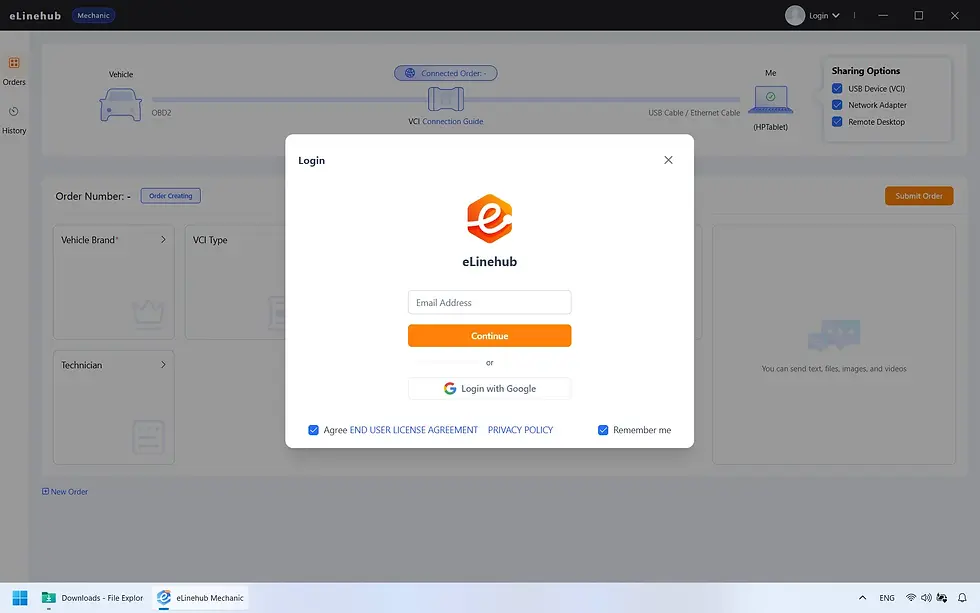
eLinehub Mechanic can be used without registration. Open the software and you’re ready to go.
If you prefer to keep a synchronized history of your diagnostic sessions, you can optionally register and log in:
Enter your email address and click Continue.
Enter the six-digit verification code sent to your email.
Fill in your country and state.
Review and accept the user agreement, then click Confirm.
Step 3: Connect Your VCI and Check Your Network
Before creating an order, set up your hardware and verify your connection.
VCI connection:
Connect your VCI (USB-type) or diagnostic network cable (Ethernet / DoIP) to both your vehicle and your computer.
Standard USB diagnostic devices do not require driver installation — Windows recognizes them automatically.
RNDIS-based devices (used by certain DoIP-capable VCI adapters) require the corresponding RNDIS driver. If you are unsure of your device type, install the driver as a precaution.
You do not need any OEM diagnostic software — such as ODIS, XENTRY, or ISTA — installed on your computer. All diagnostic operations are carried out by your Technician on their end.
Network:
A minimum upload speed of 10 Mbps is required on your side.
A wired (Ethernet) connection is strongly recommended. Wi-Fi can introduce latency and packet loss that disrupts diagnostic protocols — DoIP-based communication in particular has strict application-layer timing requirements that an unstable wireless connection can easily violate.

Step 4: Create an Order
With your VCI connected and software open, create an order for your Technician:
Vehicle information (required): Select the vehicle make, year, and model.
Optional details: Specifying the VCI device type, maintenance type, component, and vehicle system helps your Technician prepare — though none of these fields are mandatory.
Click Submit. The system will generate a secure, private Passcode for your order.
Note: If you are using a customized, branded version of the Mechanic software provided by your Technician, the order will be routed directly to their team and no Passcode is needed.

Step 5: Share Your Passcode
Share the generated Passcode with your Technician through your usual channel. When they enter it into their eLinehub Technician software, they will bind to your session instantly.
You can also use the built-in Live Chat to discuss the job, or share images, videos, and files to give your Technician additional context about the vehicle’s condition.

Step 6: The Remote Session
Your Technician will initiate the connection from their side. Once the secure connection is established, the lines between “Vehicle” and “Me” on your screen will turn green — confirming the session is live.
From this point, the session is managed entirely by your Technician. You don’t need to monitor the screen or take any further action. There are a few things to keep in mind to avoid interrupting the session mid-job:
Keep your VCI connected. Do not unplug the VCI from the vehicle or your computer until your Technician has finished and closed the connection on their end. Disconnecting the VCI during an active diagnostic or programming session can cause errors or leave the vehicle’s ECU in an incomplete state.
Keep your computer powered. eLinehub automatically prevents your computer from entering sleep mode during an active session, but make sure your laptop is plugged in or has enough battery for the full job.
Keep your internet connection stable. If you are on Wi-Fi and the signal is unreliable, switch to a wired connection before the session starts.
Your Technician will close the session when the work is complete.

Step 7: Order Completion
When the work is finished, your Technician will close the connection and send a Complete Order request.
You will receive a prompt to review and confirm the completion. If you are away from your computer or do not respond within the set period, the system will automatically confirm and complete the order. If you are registered and logged in, you can review all past sessions in your Order History.